Step-by-step guide · Verified product workflow
How to Make an Outstanding Tiny Desk AI Video From Your Photo
This Outstanding Tiny Desk AI video tutorial shows how to choose a play, upload one or two authorized photos, select a Stage vibe and quality, review the vertical result, and download the completed MP4.
Start by choosing the play because it determines the photo count and duration. Add one clear person per photo, choose Auto or a named Stage vibe, select 480p or 720p, confirm permission, and submit. When the task is complete, inspect and download the vertical MP4.
01 · Understand the result
What does the Outstanding Tiny Desk AI generator make?
This Outstanding Tiny Desk AI video tutorial also works as an Outstanding Tiny Desk AI Tiny Desk concert tutorial for the guided photo-to-video workflow. Outstanding Tiny Desk AI turns one or two authorized photos into a 9:16 MP4 at Standard 480p or HD 720p. Solo Lead Vocal Spotlight uses one photo and lasts 8 seconds; Lead + Sax Solo Cut accepts an optional second photo and lasts 10 seconds; Full Desk Jam & Big Laugh also accepts it and lasts 15 seconds.
One Lead Singer photo for the solo play, or one Lead Singer and one Sax / Bandmate photo for a face-off.
The intended duration, number of people, desk performance, camera framing, and reaction beat.
The result is AI-generated, not real game footage. The action reference shows the target action style; it does not prove that every face, limb, instrument position, or stage detail will be preserved.
02 · Before you start
What photos should you prepare?
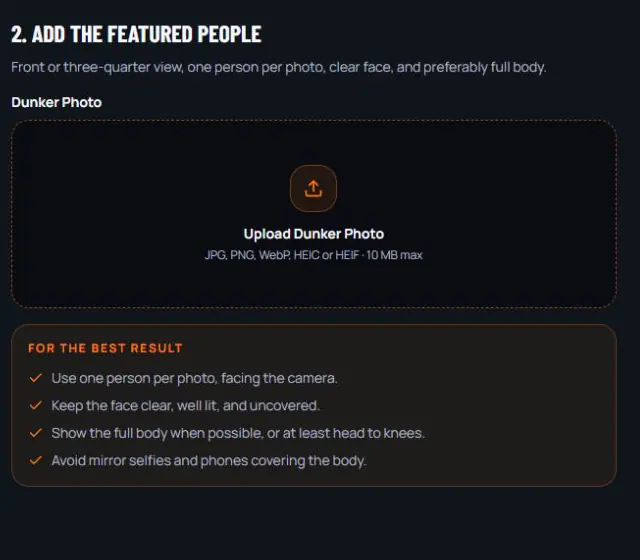
Use a sharp front or three-quarter photo with one person, a clear uncovered face, and enough body visible to guide the Tiny Desk concert pose. Avoid group photos, heavy blur, mirrored screenshots, and phones covering the body.
Upload only photos you own or have permission to use. Do not use public figures, deceptive impersonations, or prohibited images of minors.
| Play | Photos | What they guide |
|---|---|---|
| 10s · Duo / Band | 2 required | The featured Lead Singer and optional Sax / Bandmate |
| 15s · Full 5-Seat Jam | 2 required | The featured Lead Singer and optional Sax / Bandmate |
| 8s · Solo Vocal | 1 required | The featured Lead Singer |
One person per photo keeps the role assignment clear. It does not guarantee exact likeness in every generated frame.
03 · Follow the workflow
Make your Outstanding Tiny Desk AI video in five steps
If you are looking for how to make an Outstanding Tiny Desk AI video, this tutorial uses the same five steps shown on phone and desktop.
- 01
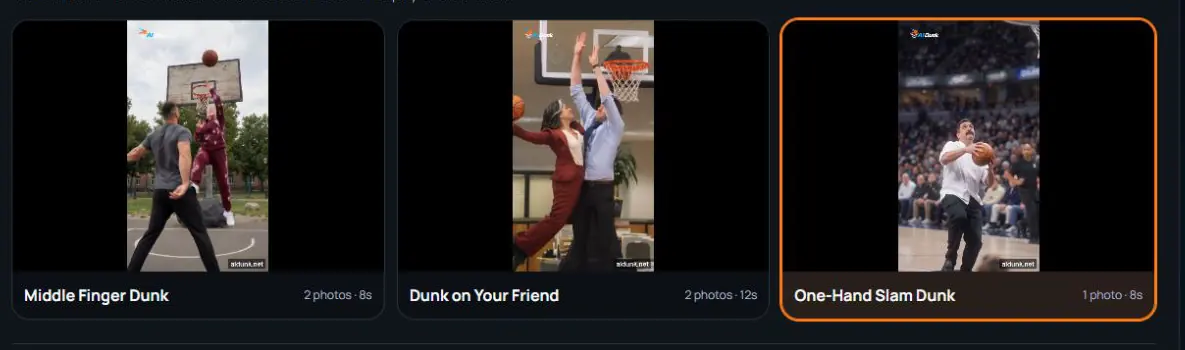
Choose the desk play
Pick Lead + Sax Solo Cut (10s), Full Desk Jam & Big Laugh (15s), or Solo Lead Vocal Spotlight (8s). The selected play controls whether the form accepts an optional Sax / Bandmate photo.
- 02
Add the required photos
Upload one clear person per photo. Every desk play needs one Lead Singer photo; Lead + Sax Solo Cut and Full Desk Jam & Big Laugh also accept one optional Sax / Bandmate photo. Use only photos you own or have permission to use.
One personClear faceVisible bodyGood lightSelecting and reviewing photos does not itself create a video.
- 03
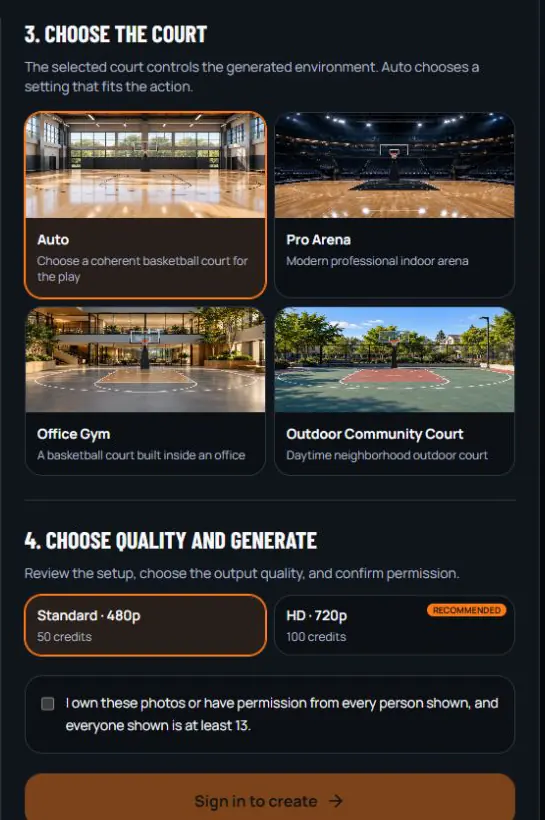
Choose the stage vibe
Keep Auto selected or choose Classic Bookshelf Desk, Vintage Vinyl Studio, or Late-Night Funk Session. These are product options; final environment consistency still depends on generation.
- 04
Choose quality and confirm permission
Select Standard 480p for 50 credits or HD 720p for 100 credits. Review the setup and confirm that every featured person is eligible and authorized.
See the current video packs before choosing a quality.
- 05
Sign in, create, and review
Sign in if asked, submit the prepared setup, then follow the existing task. After it completes, watch the entire clip and download the MP4 only when the result is suitable.
04 · After you submit
Read the task state before trying again
Keep the same account and check the active result or the signed-in My Creations task list. Refreshing a task is different from submitting another generation. Completion time varies by play and provider load, so no fixed number of minutes is promised.
| What you see | What to do |
|---|---|
| Queued / preparing references | The task is assembling the authorized inputs. Keep the existing task open and do not submit a duplicate. |
| Generating | The video model is processing the selected play. Wait or return to the same task later. |
| Finalizing | The result is being validated, combined with authorized template audio, and prepared for delivery. |
| Completed | Watch the full result, inspect the people and action, then download only if it is suitable. |
| Terminal failure | The reserved credits are released. Check the task message and input before deciding whether to try again. |
| Submission review | The task is under submission review. Do not submit the same setup again until that review is resolved. |
05 · Verified input and output
What did one real Outstanding Tiny Desk AI generation produce?
This Outstanding Tiny Desk AI video tutorial separates the source from the finished file. The source portrait below is an AI-generated fictional adult chef. The video is the actual accepted Outstanding Tiny Desk AI result generated from that exact input on October 26, 2026. It used Solo Lead Vocal Spotlight, Classic Bookshelf Desk, Standard 480p, and an 8-second output.
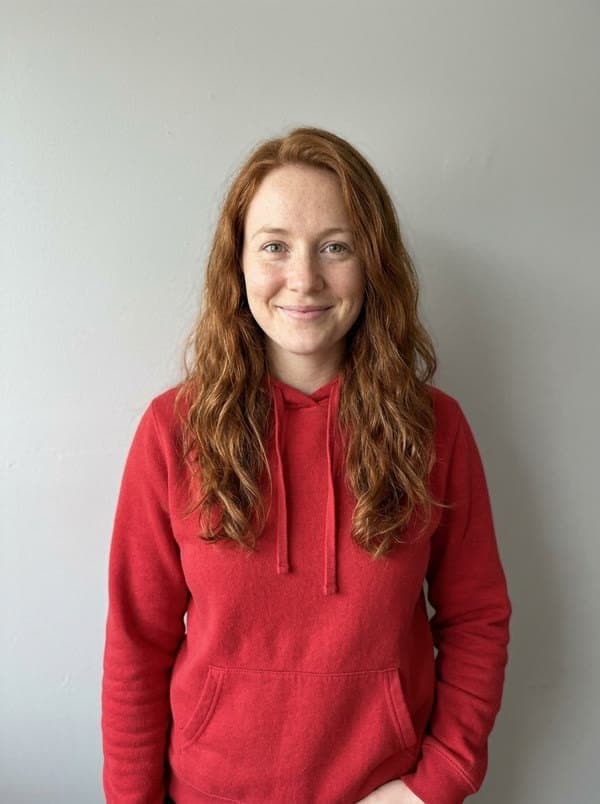
The review found one featured singer, a visible bookshelf concert set, and no visible text or watermark in sampled frames. The file passed the publishable sample review. This is one controlled result, not a success-rate claim or a promise that every face, hand, instrument position, stage, or final pose will look the same.
06 · Review the result
Watch the whole video before sharing
Use this Outstanding Tiny Desk AI video tutorial checklist at the opening mic turn, the vocal close-up, the sax break, and the band finale. Check the featured people and instruments; listen for the expected audio; and look for extra limbs, body overlap, sudden clothing changes, brand marks, captions, or a visible watermark.
The face changes
Use a sharper, front or three-quarter photo with an uncovered face. Generation can still change details during head turns, close-ups, or fast gestures.
A hand or instrument looks wrong
Review the microphone grip, keyboard hands, saxophone keys, and group finale. Fast performance motion places hands, faces, and instruments close together, so artifacts can appear.
The Sax / Bandmate overlaps the Lead Singer
Use separate photos with one person in each. A clear source helps role assignment, but it cannot guarantee clean body separation in every frame.
The stage differs from the choice
A Stage vibe option guides the intended environment. Lighting, instruments, bookshelves, and background details may still vary.
A second render is a separate attempt and may fail differently. Change the source photo only when the review points to a specific input problem.
07 · Quick answers
Common Outstanding Tiny Desk AI video questions
Is one photo enough?
Yes for Solo Lead Vocal Spotlight. Lead + Sax Solo Cut and Full Desk Jam & Big Laugh each need one Lead Singer photo and one Sax / Bandmate photo.
Which play needs two photos?
The Lead + Sax Solo Cut generator and Full Desk Jam & Big Laugh need two separate authorized photos. Solo Lead Vocal Spotlight needs one photo.
Do I need a written prompt?
No. The guided creator uses the selected desk play, photo roles, Stage vibe, and quality instead of a written prompt. If you want to control the performance manually in another compatible tool, use the Outstanding Tiny Desk AI prompt guide.
Do I need a reference video?
No. The public creator does not ask you to upload a video. The selected play supplies the intended action inside the product workflow.
Can I make it on a phone?
Yes. The form stacks the desk play, photo, Stage vibe, and quality controls for a mobile screen. Use an original photo rather than a compressed screenshot when possible.
Does the output include sound?
Completed Outstanding Tiny Desk AI files include the authorized template audio as an AAC audio track. The provider-generated audio is not used.
Does Outstanding Tiny Desk AI add a watermark?
No visible watermark was observed in the accepted test samples reviewed on October 27, 2026. AI output can vary, so inspect the completed file before sharing it.
Can I download the MP4?
Yes. After a task reaches completed status, watch the result and download the vertical MP4 from your signed-in account.
How long does generation take?
There is no fixed published completion time. Timing varies by the selected play and provider load, so follow the existing task instead of submitting a duplicate.
What happens to credits when generation fails?
A terminal failure releases the credits reserved for that generation. If submission status is unclear, wait for review rather than submitting the same setup again.
Registration includes no free credits. The smallest current one-time pack is $6.99. Review the Outstanding Tiny Desk AI video pricing before generating.
Review the finished file before sharing, label AI-generated content where a platform requires it, and follow the terms and privacy policy.
Your turn
Choose the play.
Add your photos.
Start with one or two authorized photos, depending on the play. Choose the Stage vibe and quality only after the input roles are clear.
Create an Outstanding Tiny Desk AI video from your photo